Create an Alert
Create your first alert.
Create an alert in less than a minute and automatically receive a notification when something important happens in your application.
Alerts continuously watch your incoming events. When an event matches the conditions you define, OneMinute Logs sends a webhook notification immediately.
1. Open the alert builder
From your dashboard, open Alerts from the sidebar and click Create Alert.
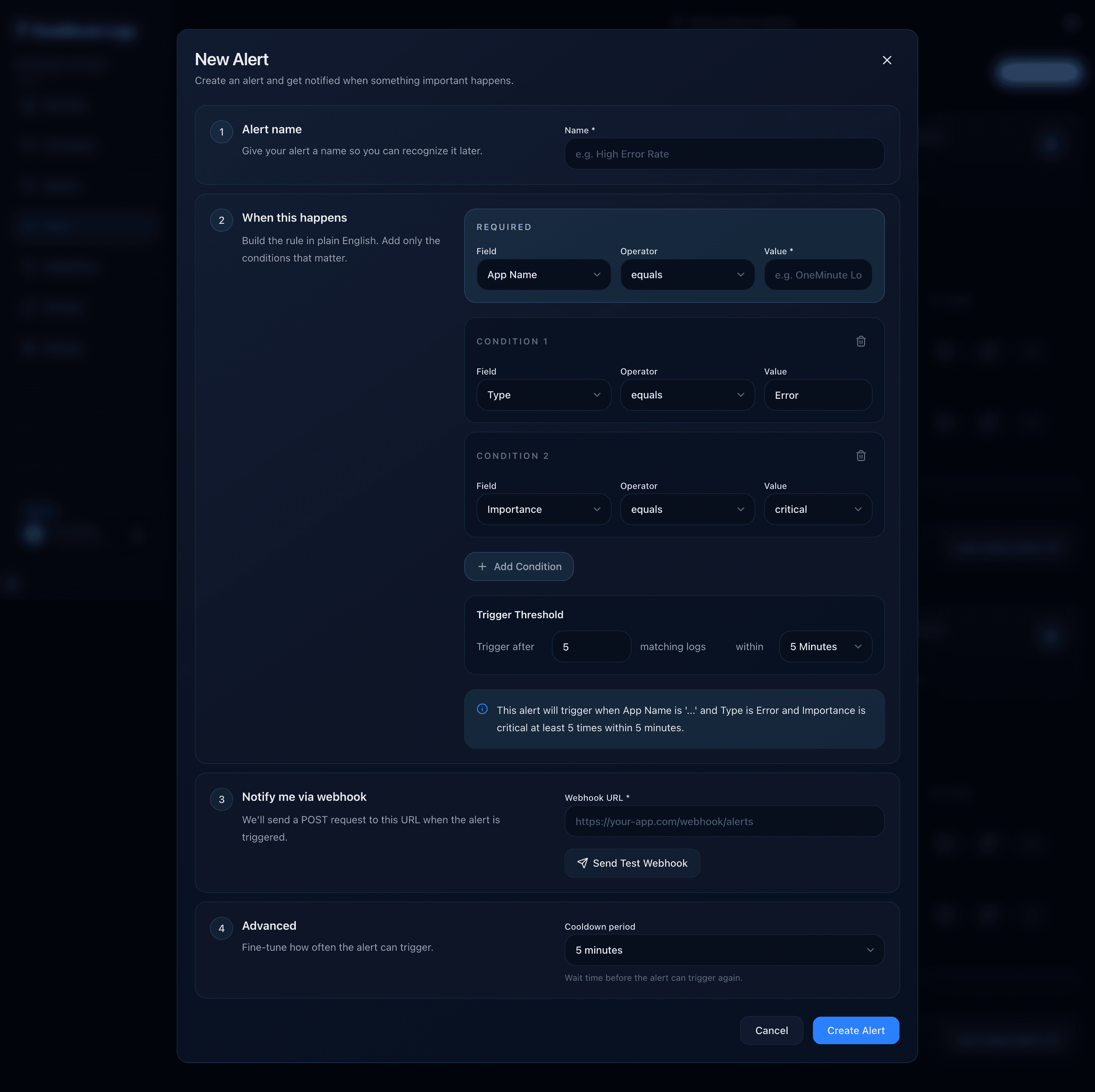
2. Give your alert a name
Choose a name that clearly describes what you are monitoring.
A good name makes alerts easier to recognize later.
3. Build the rule
Alerts are written in plain English. Start by selecting the application you want to monitor. Then add only the conditions that matter.
Example rule
App Name = billing-api
Type = error
Importance = critical
You can combine multiple conditions to make alerts more specific and reduce unnecessary notifications.
4. Set a trigger threshold
Instead of notifying you after every matching event, you can require the event to happen multiple times within a time window.
Thresholds help reduce noise caused by one-off failures.
5. Add your webhook
Enter the webhook URL that should receive notifications whenever the alert triggers.
OneMinute Logs sends an HTTP POST request containing the alert information.
Need help setting up or testing webhooks? Read the Webhooks guide.
6. Test before production
Before relying on an alert in production, send a test webhook and verify that your endpoint receives it correctly.
The Webhooks guide covers:
- Testing locally during development
- Testing in production
- Expected request payload
- Signature verification
- Common troubleshooting steps
7. Configure cooldown
Cooldown prevents the same alert from firing repeatedly while the same issue is still happening.
For example, with a 5 minute cooldown, only the first notification is sent during that period, even if more matching events arrive.
That's it
Click Create Alert.
From now on, OneMinute Logs continuously evaluates every incoming event and automatically sends a notification whenever your conditions match.
What's next?
Now that your alert is running, learn how to configure and verify webhook deliveries.